Manage players, whitelist and ops
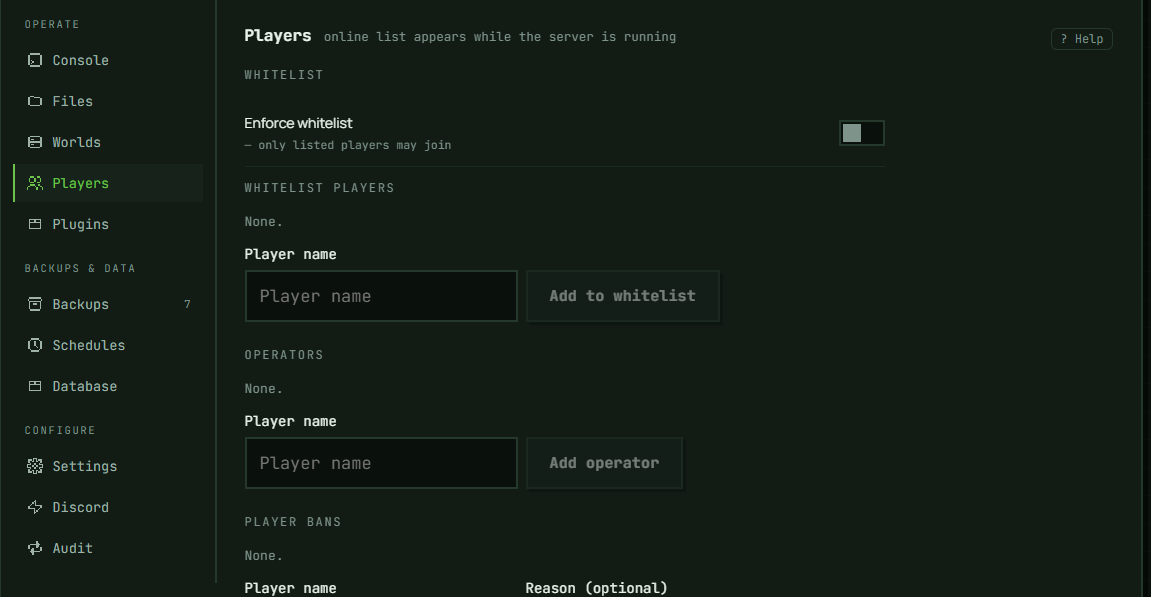
The Players tab manages whitelist entries, operators, and player/IP bans, plus a live view of who's currently online. Unlike some other panel controls, most of this works whether the server is running or sleeping — while running, changes go out live over RCON; while sleeping, the panel edits the underlying list files directly, so they're in effect the moment the server next starts. You don't need to wake a server just to whitelist someone.
Whitelist: the list and the switch are different things
Adding names under Whitelist players does nothing on its own — it only restricts who can join once Enforce whitelist (the toggle above the list) is switched on. Even then it doesn't lock out everyone unlisted: a player who's already an operator can still join regardless of the whitelist — that's how Minecraft's own whitelist check works, not something this panel adds. A full whitelist with enforcement off, on the other hand, doesn't restrict anyone at all.
That toggle is the same setting as the Whitelist field under Settings → Properties → Access — they're not two separate switches, just two places to read and change one value. The timing differs only while the server is running: flipping it here on the Players tab pushes the change live immediately, the same way the server's own /whitelist on/off command would. On a sleeping server there's no "immediately" either way — this toggle and the Settings field both just write the setting and it takes effect on the next start.
Saving other settings doesn't touch it: Settings → Properties saves only the fields you changed there, so a change to Difficulty or PvP leaves the whitelist as this toggle set it. What doesn't stay in sync is the display — after you flip Enforce whitelist here, the Whitelist field on Settings → Properties keeps showing the old value until you reload the page, so reload before reading or changing it there.
Operators and bans
Operators, Player bans, and IP bans work the same way as the whitelist list itself: add or remove an entry, with an optional reason for bans. All three apply live if the server is running, or on its next start if it's sleeping.
Adding a player to the whitelist, ops, or bans while the server is sleeping resolves the name to a Minecraft account before it's saved — but only if your server uses online (Mojang-authenticated) mode, which is the default. If the name doesn't resolve there, the add fails with an "unknown Minecraft account" error rather than silently saving something that can't work. With online mode turned off (Settings → Properties → Access → Online mode), the same add always succeeds instead — it assigns an offline-mode identity rather than looking one up, so there's nothing to fail. Either way, this resolution step only happens for a sleeping server — a running server hands the name straight to its own whitelist add / op / ban command, which does its own lookup.
On a server that belongs to a network, that Online mode field is locked — it isn't a per-server switch there. A proxied backend doesn't authenticate players itself; its proxy does, and the platform writes the backend's value as part of the network's wiring. See Server networks for the network-wide Authentication mode setting that governs it.
Online players
The Online section only has anything to show while the server is running — it refreshes automatically every few seconds, and each player has a Kick button with an optional reason. Both the list and Kick require the server to be running; there's nobody to kick on a sleeping server.
The online count shown comes from what the server itself reports. If the server names fewer players than the count it claims — this has happened in production, where a server reported 63 online but named only 14 — the panel says so directly rather than showing two numbers that quietly disagree.
Troubleshooting
Whitelisted players still can't join, or an empty whitelist isn't stopping anyone. Check Enforce whitelist — the list of names has no effect until it's on.
"Unknown Minecraft account" when adding a name. See "Operators and bans" above — this only happens on a sleeping server in online mode; a running server, or offline mode, never produces this error.
No Kick button, or the Online list is empty even though players should be on. The server isn't running — start it to see who's actually connected.
Add/ban/whitelist form shows an error next to it. The error is scoped to that one section — check the message there; other sections keep working independently.
In the panel: Server → Operate → Players