Manage worlds
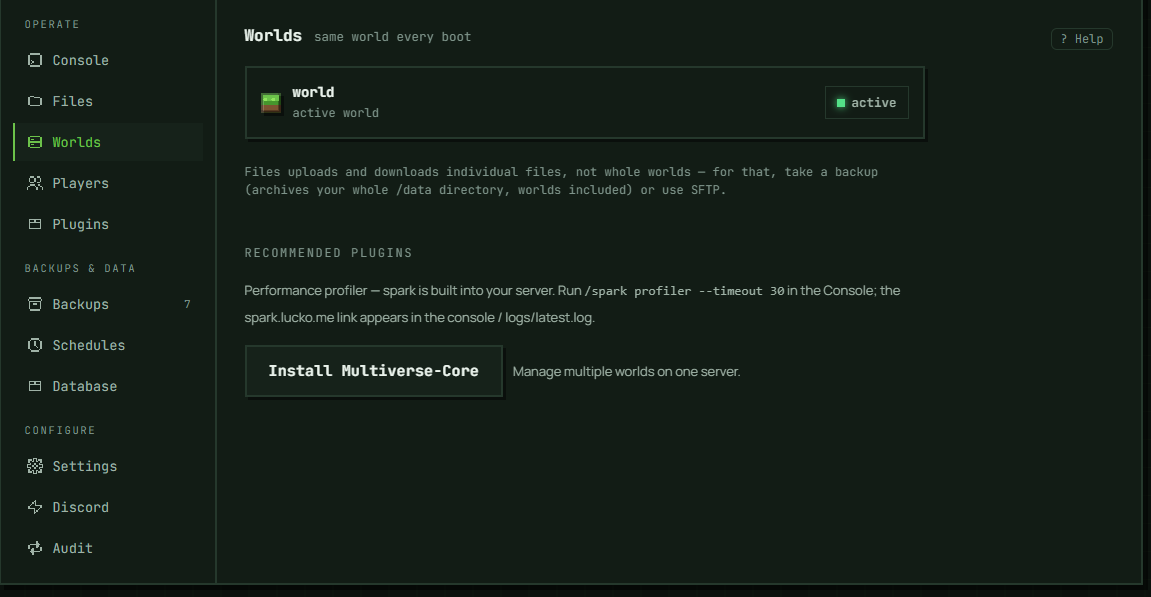
The Worlds tab lists the worlds already on your server and lets you switch which one loads on the next boot or remove one you no longer need. It runs the same world every boot until you change that here — nothing about world selection changes on its own between starts.
Switch the active world
Each world in the list shows whether it's the active one or just linked. Only one world can be active at a time; that's the one the server loads on its next start. To switch, use Set active next to a linked world. The change doesn't apply immediately — the panel tells you it applies on the next start, so restart the server afterward if you want to play on it right away.
Delete a world
Delete next to a linked world removes it — the panel asks you to confirm first. Before it deletes anything, the platform saves the server's current files as a Before world deletion backup on the Backups tab, kept for 72 hours: restoring it brings the world back, along with the rest of the server's files as they were at that moment. If that snapshot wouldn't fit in the server's backup space, the deletion is refused with the numbers and nothing changes; if taking it fails, the deletion doesn't go ahead and the world stays. On a large server the snapshot takes a few minutes — the panel then says the deletion started; reload the page to see the world gone, and the Audit tab shows how it ended. While it runs, that world can't be made the active one. You can't delete the active world from this list; switch to a different one first if you want to get rid of the one currently loaded. To keep a copy for longer than 72 hours, download a backup — it archives your whole /data directory, worlds included — or pull the folder over SFTP; the Files tab itself can't download a folder (see below).
Getting a world onto the server
A world your modpack brought
Some modpacks are built around a map and ship it inside the pack. It arrives in the saves/ folder, because that's where a Minecraft client keeps its worlds and the pack's files are copied across as they were packed. A server never loads a world from saves/ — it loads one folder at the top level, the one named by level-name.
The list shows those worlds too, marked from the modpack with the folder they're in. Set active on one moves it to the top level and points the server at it, so there's no file surgery to do yourself. The move is instant regardless of the world's size — it's a rename on the same disk, not a copy.
"This server is set to boot X, and no folder of that name is on disk"
The world your server is configured to load isn't there. Starting it in that state doesn't fail — the server generates a brand new empty world under that name and carries on, which is why this is easy to miss.
The usual cause is a name that doesn't match: a world moved in over SFTP, or restored from another host, whose folder is spelled differently from level-name — including a difference only in capitals, which matters on our servers (SpawnSS3 and Spawnss3 are two different folders). Pick the world you want from the list and it's fixed; or rename the folder in Files to match.
This tab doesn't create worlds itself — it only manages the ones already present. If the list is empty, start the server once and it generates a fresh world (or, if SFTP is enabled for your server under Settings, you can upload one that way). The Files tab can upload a folder — drag it in or use Upload Folder — within its limits: 500 files and 1 GB per upload, sent one file per request. A world that fits under both can come in that way; for a bigger one use SFTP, or pack it into an archive and use Import world. Downloading still works file by file — the Files tab can't hand you a whole folder.
Recommended plugins
Below the world list, non-Vanilla servers see recommendations — which ones depends on your server core:
- Multiverse-Core, for managing multiple worlds on one server, shows an install button only on Paper and Purpur.
- Spark, a performance profiler you run with
/spark profilerin the Console to diagnose TPS drops, shows an install button on cores other than Paper/Purpur (Fabric, Forge, NeoForge). On Paper and Purpur it's a different story: at versions we've confirmed bundle it in the server jar, the panel tells you to just run the command — nothing to install. On older or unconfirmed Paper/Purpur versions, there's no install button either; the panel points you to add the jar yourself under Plugins → Upload .jar, because spark doesn't publish an installable Paper/Bukkit build at all.
Installed plugins apply on the next start, same as everywhere else in the panel.
This isn't world import
If you're trying to bring a world archive you already have onto the server — from another host, a local install, or a backup — that's a different control, on Settings → Version & world, not here. See Import an existing world for the size limit, accepted formats, and what it replaces.
Troubleshooting
Set active / Delete did nothing. Check the row for an error message under the world's name — a failed request shows the reason there rather than silently doing nothing.
I don't see any recommended plugins. Vanilla servers don't show this section at all — those tools are plugins, and Vanilla doesn't run plugins. Multiverse-Core only appears on Paper and Purpur; on other cores that's expected.
In the panel: Server → Operate → Worlds