Create a plugin database
The Database tab provisions a MySQL-compatible database for plugins that need one — LuckPerms, CoreProtect, and similar plugins store their data in a real database instead of flat files. One database per server; the panel doesn't offer more than one.
This database lives outside /data, in a separate service — it is not included when you back up or restore the server from the Backups tab.
Creating the database
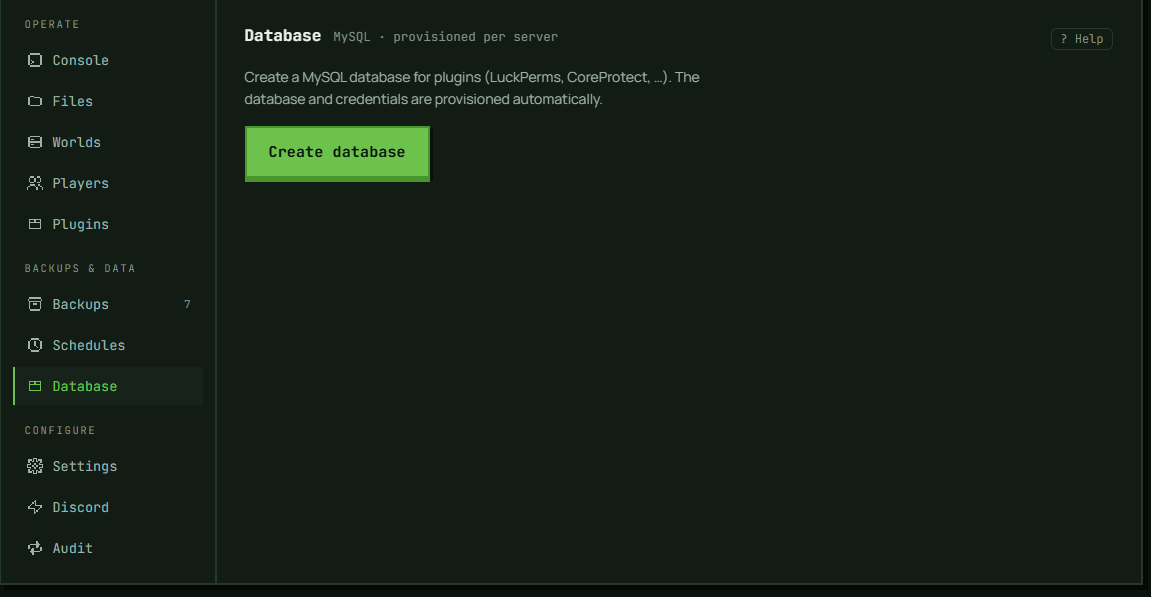
Click Create database. The database, a matching user, and a generated password are provisioned automatically — there's nothing to name or configure. This works regardless of whether the server is running or sleeping; it never starts or wakes the server. The panel only shows this button when no database exists yet, so hitting a rejection here almost always means the view is stale — reload rather than assume you need to drop anything. If a database genuinely already exists and you want to start over, drop the existing one first.
Getting the connection details
Once created, the tab shows Host, Port, Database, Username, and Password. Host, Port, Database and Username each have a copy button; Password does not — it's masked by default, with a Show/Hide toggle in place of a copy button. The host address is the database's internal network address, reachable from your server's own game container — not a public address you'd connect to from your own machine.
Connecting a plugin
Paste these values into the plugin's own database config — typically a config.yml or database.conf the plugin reads on startup, with fields for host, port, database name, username, and password. Exact field names depend on the plugin; consult its own documentation for where these values go.
Rotating the password
Rotate password generates a new password and applies it immediately on the database itself. Update every plugin config that references the old password afterward — they'll fail to connect until you do, since the old password stops working the moment it's rotated.
Dropping the database
Drop database deletes the database and all data in it permanently, after a click-through confirmation. Any plugin still configured to use it will fail to connect afterward until you create a new one and reconfigure the plugin.
What happens when the server is deleted
Deleting the server also drops its database — the platform attempts this automatically as part of server deletion, before the server's container is removed. This is best-effort: if it fails, deletion of the server itself still proceeds, and it's logged rather than surfaced to you. There's no separate manual step needed under normal circumstances.
Troubleshooting
"A database already exists for this server". The panel hides Create database once a database exists on record for this server, so seeing this message almost always means your view is stale — reload the tab first. If a database genuinely exists and you want different credentials, drop the existing one before creating a new one, or use Rotate password if a new password is all you need.
"Databases aren't available on this server's node yet." The database feature isn't configured on the node your server currently lives on.
Plugin can't connect after I rotated the password. Expected — rotating invalidates the old password immediately. Update the plugin's config with the new password shown on this tab (click Show to reveal it) and restart the server so the plugin picks up the change.
Lost track of the password. Click Show next to the Password field to reveal the current one — you don't need to rotate it just to see it again.
Plugin can't connect even with the right credentials. Double check the host — it's the internal address for this database, not a hostname you can reach from outside your server's own container.
In the panel: Server → Backups & data → Database