Configure server settings
The Settings tab is a row of sub-tabs covering everything about how a server is configured. Some only show up under a condition: Resources is hidden on the free plan; Custom domains is absent on a server that belongs to a network (on the free plan the tab is there but only says a paid plan is needed); Bedrock crossplay only appears on a plain Paper or Purpur server that isn't running a modpack; and Server name and Region are shown only to members with the owner role. Everything else in the row — General, Version & world, Properties, Alerts, Public page, SFTP access, Wake on join, Extra ports, External backend, Danger — is always there.
This article covers General, Version & world, Properties, Alerts, Public page, Server name, and Danger. The rest have (or share) their own article: Resources → change-ram-plan, Wake on join → wake-hibernate, SFTP access → manage-files, Custom domains → custom-domains, and Extra ports / Bedrock crossplay / External backend → connect-and-share.
General
Server list sits above the description: a preview of how the server appears in the Minecraft multiplayer list (the font is approximate), and the server icon. Pick any PNG, JPG, WebP or GIF — the panel converts it to the 64×64 PNG Minecraft requires; for a picture that isn't square, Fit keeps the whole picture with transparent margins and Fill crops the centre. If the server's current server-icon.png can't be read by Minecraft — for example a WebP renamed to .png — the card says so. A running server picks up a new icon after a restart; a sleeping server picks it up without a restart. While the server sleeps, a one-line description gets a sleep notice as its second line; a two-line description stays whole and the sleep notice moves to the tooltip on the player count.
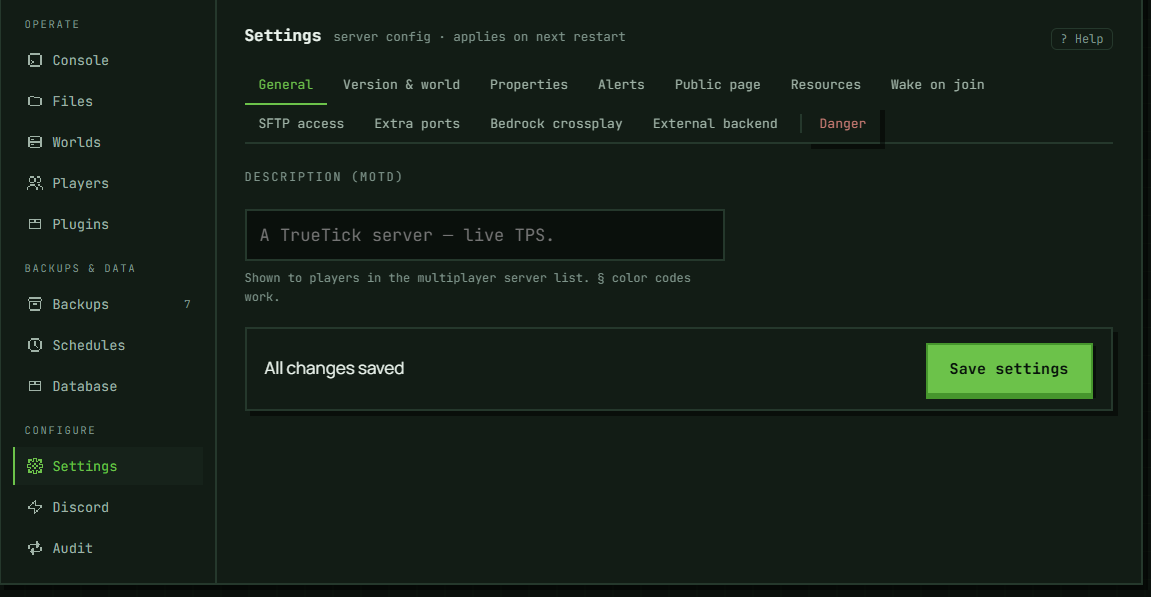
Below it, the server's description (MOTD), shown to players in the multiplayer server list — § colour codes work. The field itself won't let you type past 128 characters. What it doesn't stop is a paste carrying a line break or another control character within that limit — that's what actually trips a validation error in practice, shown inline next to the field instead of failing silently on save.
Version & world
The core (Paper, Purpur, Vanilla, …) and Minecraft version live here, with their own Apply button — separate from the rest of this tab, because a version or core change recreates the container rather than just restarting it. Both selectors and Apply are disabled while the server is running, starting, or stopping, with "Stop the server to change its core or version." shown below them; a saved change takes effect the next time the server starts, since it has to already be stopped to accept the change. Every core or version change first takes a snapshot of the server, kept for 72 hours as a Before version change backup on the Backups tab; the change is refused, with the numbers, if that snapshot would not fit in the server's backup space (three times its disk) — unless the server has no manual, scheduled or recovered backups or snapshots yet, when there would be nothing to delete to make room. If taking the snapshot fails, the core and version don't change. On a large server the snapshot takes a few minutes: the panel says the change started, and the server can be started once it finishes — the Audit tab shows how it ended (settings.version when it's done). If the server is started before the change is written — a player joining wakes a sleeping server — the change doesn't go ahead; on a server people join often, turn off Settings → Wake on join until it finishes. Restoring that backup brings back the server's files as they were before the change; the core and version are settings, not files — set the old ones again before you start the server.
Picking an older version than the one currently installed is a downgrade, and triggers a confirmation that requires typing DOWNGRADE — the snapshot above is taken first, but recovery from a downgrade isn't always possible. That confirmation is part of the version control itself, not something exclusive to the Danger tab below: picking an older version here fires the same DOWNGRADE-typed dialog as doing it from Danger.
Below that: bringing in a world you already have is a separate control, covered in Import an existing world.
Properties
This is server.properties, exposed as one field per key, grouped and with a search box to filter by name. Each field defaults to default (unset) — leaving it there means the panel doesn't set that key at all, so the server keeps whatever its server.properties already has (on a new server, its default); it does not mean the panel is choosing a value for you. Setting a field back to default after you'd changed it works the same way, which means it doesn't undo your change: the panel stops setting that key, and the last value written for it stays in server.properties until you change it. To go back to the default value, pick it explicitly.
- Core gameplay — Game mode (
survival/creative/adventure/spectator), Difficulty (peaceful/easy/normal/hard), Hardcore (see below — it works differently from everything else on this tab, so it's worth reading the fuller explanation), PvP, Max players (max-players, 1–200), View distance (3–32), Simulation distance (3–32), Spawn protection (0–64), Allow Nether, Allow flight. - Performance — Sync chunk writes.
- Spawning & world — Spawn monsters/animals/villagers, Generate structures, Command blocks, Force game mode, Level seed (text, up to 128 characters), Level type (text, up to 64 — this is also where a modpack's own world types like
skygridgo), Generator settings (JSON text, up to 1024 characters). - Access — Whitelist, Online mode (auth). On a server that belongs to a network, Online mode isn't set here: the field is locked and reads "managed by the network". A proxied backend doesn't authenticate players itself — its proxy does — so the platform writes that value as part of the network's wiring. See Server networks.
- Resource pack — Resource pack URL (up to 2048 characters), SHA-1 (up to 40), Require resource pack.
- Sleep — Hibernate after N minutes empty. This is the idle-hibernation threshold, not a
server.propertieskey, and it's saved through this same form — see wake-hibernate for what it does and when a saved change actually reaches a running server.
Two values are flagged in red the moment you set them: Hardcore = on and Online mode = off — both real, valid settings, just ones the panel calls out as consequential. The Online mode flag doesn't appear on a network member: there the value isn't a choice you made but the one a proxied backend has to have, so flagging it would be an alarm about a field you can't even touch.
Hardcore works differently from every other field on this tab. Minecraft doesn't store it in server.properties at all — it freezes the flag into the world's own save data the moment the world is first generated, and never looks at server.properties for it again. That's why toggling Hardcore here used to do nothing on a server that already had a world: your setting was saved, but the world itself never changed. Saving this field now normally patches the actual world (Nether and End included) the next time the server starts, the same restart-to-apply rule as everything else on Properties. That's a best-effort patch to the world's own save file, not a guarantee: if it can't go through — a permissions problem, a full disk, a save file in a format we don't recognize — the server still starts rather than get blocked on it, and nothing on this page tells you the patch didn't happen. The line right under the Hardcore toggle is a fresh read of the world's own save file, taken separately from whatever you've got selected here — it's the closer of the two to the truth, but it's still a read of the same file the patch writes to, so if it and the toggle still disagree after a restart, that's worth a support ticket rather than another restart.
One thing turning Hardcore off does not do: bring back a player the world already put into spectator mode when they died. That's Minecraft's own hardcore behavior, not something we add or can undo by flipping a flag — the world remembers that death regardless of what the setting says afterward. Restoring that player is a manual step for an op, from the console or in-game: /gamemode survival <player>.
The Whitelist field here is the exact same setting as Enforce whitelist on the Players tab — not a second switch. Saving other fields here leaves it alone, because Save sends only the fields you changed; but this field doesn't update in place when that toggle is flipped — reload the page to see the current value here. That article's "Whitelist: the list and the switch are different things" section has the full mechanics.
Alerts
A Discord webhook that posts when your server's tick rate is struggling, and when the server fails to start three times in a row. The tick-rate posts need live tick metrics: a server whose core reports none — a Velocity proxy, or Vanilla and Fabric before Minecraft 1.20.3 — never gets one however it runs, so a quiet webhook isn't proof the tick is fine. A tick-rate post fires after three consecutive samples that each count as "low" — and a sample counts as low if either live TPS is below 18, or the core's own tick loop is reporting itself as "lagging" (which can happen even above 18 TPS). The two conditions share one streak: two low-TPS samples followed by one lagging sample still fires, same as three of either kind alone — there's no separate immediate page for "lagging" on its own, it's one more way to add to the same three-sample count. A down-post is followed by a 15-minute cooldown before another can fire. Recovery needs both signals to clear: TPS back at or above 19 (not just above 18 — the gap is deliberate, so a server oscillating right at the threshold doesn't spam recovery-then-alert) and the core no longer reporting "lagging". Only a https://discord.com/api/webhooks/… (or discordapp.com) URL is accepted — anything else is rejected with "Must be a Discord webhook URL (https://discord.com/api/webhooks/…)".
Public page
Publishes a shareable page at /s/<slug> with live TPS, uptime, and player count. A second toggle, Show connect address, additionally puts the join address on that public page — off by default even when the page itself is on. Once published, an Embed the live badge section gives you HTML and Markdown snippets for a live-TPS badge (cached at most 15 seconds) to drop into a README, site, or Discord message. This pane saves immediately on toggle — it isn't part of the Save bar described below.
Server name
Renames the server: its address, its panel link, the name the API, CLI and MCP know it by, and its SFTP login all change to the new name. Ports, worlds, plugins, backups and billing don't. Type the new name (1–63 lower-case letters, digits and hyphens, not starting or ending with a hyphen) — the field tells you as you type if it's taken or reserved — then Rename; a confirmation lists exactly what changes for this server before anything happens, including any custom domain that points at the old address by CNAME or SRV and needs repointing.
- Stop the server first. Renaming only works on a stopped server, and not on one that is part of a network.
- The old address keeps working for 30 days, and the old panel link redirects to the new one for members who can see the server. Nobody else can take the old name during that time; after it, the name is released.
- Once every 7 days. The confirmation shows the date you can rename again.
- API scripts need updating at once — requests by the old name stop working as soon as the rename is done; only the game address and the panel link get the 30 days.
Saving General, Version & world, Properties, and Alerts
These four share one Save bar at the bottom: it shows how many fields are unsaved (its clean-state text is "All changes saved"), and a Discard action that reverts them all after a confirmation. While the server is running, each of these panes shows a banner — "Server is running — changes apply on the next restart." — with its own Restart now button. On save, the panel confirms with "Saved — applies on next restart," or, if a section failed, lists each failure by name (e.g. MOTD: …, Properties: …) joined together. Public page, Resources, SFTP access, Extra ports, Bedrock crossplay, and External backend are not part of this Save bar — each of those applies (or schedules) its own change the moment you interact with it. Wake on join is a partial exception: the same Save bar still renders at the bottom of that pane, but the toggle there isn't wired into it — it saves on click, through its own request. The count on the bar isn't scoped to whichever pane you're looking at, though: it's one shared count for the whole tab, so if you left an unsaved change on, say, Properties and then switch to Wake on join, that same "N unsaved changes" — and a working Save button for it — is still sitting there. The server icon is not part of this Save bar either — it saves with its own Save icon button.
That banner and confirmation are wrong for Alerts, specifically. General (the description), Version & world, and Properties genuinely need a restart to take effect. A saved alert webhook doesn't — it writes straight through to the running server's config, and for a server whose core reports live tick metrics (see Alerts) it's live in time for the next stats sample, seconds later, no restart involved. The panel shows the same "changes apply on the next restart" banner and "Saved — applies on next restart" confirmation on the Alerts pane anyway, because it's the same shared Save bar and banner component for all four panes; don't restart a live server to "activate" an alert webhook — it needs no restart.
Danger
- Downgrade core version — shown for any server not managed by a modpack; the same control and confirmation described under Version & world above.
- Reset world — deletes the current world and regenerates one using whatever Level type / Generator settings are currently set on Properties, so set those first if you want something other than the default. Requires the server to be stopped, and requires typing the server's hostname to confirm. The server's current files are saved first as a Before world reset backup on the Backups tab, kept for 72 hours — restoring it undoes the reset, along with the rest of the server's files as they were at that moment; if that snapshot wouldn't fit in the server's backup space, the reset is refused with the numbers, and if taking it fails, the reset doesn't go ahead and the world stays. On a large world the snapshot takes a few minutes: the panel says the reset started, and the server can be started once it finishes — the Audit tab shows how it ended. Until it finishes, the active world can't be switched to another one (on the Worlds tab or through
level-name): the reset would otherwise wipe that world instead. - Delete server — permanently removes the server and its world; also requires typing the hostname. Download a backup first if you might want any of it back.
Troubleshooting
A tab I expect isn't there. Resources needs a paid plan (not free); Custom domains is hidden on a server that is a member of a network; Bedrock crossplay needs a plain Paper or Purpur server with no modpack attached; Server name and Region need the owner role. None of these is a bug — see change-ram-plan, custom-domains and connect-and-share.
Save button won't do anything. Either nothing has changed yet, or the MOTD has a validation error (over 128 characters, or a line break/control character in it) — fix that first; it blocks the whole Save bar, not just the MOTD field.
I saved a property and nothing changed in-game. Expected — see "Saving…" above: General, Version & world, and Properties apply on the next restart, not immediately. Use Restart now on the banner if you don't want to wait. (Alerts is the exception — a saved webhook needs no restart; ignore the same-looking banner there.)
The Whitelist field disagrees with the Players tab. They're one setting, but this field shows the value from when the page loaded (or from your last save here) — reload the page. Saving other fields on this tab doesn't change the whitelist.
Version/Downgrade controls are disabled. Stop the server first — both are blocked whenever it's running, starting, or stopping.
In the panel: Server → Configure → Settings